eps1.1AI
Context Engineering - Part 1: The Context Window
What actually goes to the server when you talk to an AI tool, and why it changes the way you use Claude Code, Cursor or Copilot.
Every time you type a message in Claude Code, what goes to the server isn’t just what you wrote. It’s a JSON array with the full conversation history: every message, every reply, every tool result.
That’s the context window, and it sits at the heart of a concept called Context Engineering, which in the words of Tobi Lutke (Shopify’s CEO) is “the art of providing all the context for the task to be plausibly solvable by the LLM” (original tweet). Unlike prompt engineering, which is about “how to write a good prompt”, context engineering goes further: it’s about what is inside that array at the moment the LLM processes your message.
Understanding this changes the way you use any AI tool. That’s what this post explains.
The content comes with hands-on examples, based on Rodrigo Branas’ AI course for developers (https://www.branas.io/formacoes/inteligencia-artificial). The full code is at github.com/renangabriel27/context-engineering-ia. To run it, set up the .env:
cp .env.example .env
OPENROUTER_API_KEY=your_key_here
OPENROUTER_MODEL=x-ai/grok-4.1-fast
What the context window is
Every time you send a message to an AI tool, what goes to the server isn’t only your last message. It’s a JSON array with the full conversation history: every message, every reply, every tool result.
That’s the context window. It’s the only “memory” the LLM has during a session.
An LLM (Large Language Model) is the language model that processes the text and generates the replies: Claude Sonnet, GPT-4o and Grok are examples. Every AI tool like Claude Code, Cursor or Copilot runs an LLM under the hood.
The structure is simple:
{
  "messages": [
    { "role": "system",    "content": "You are a coding assistant..." },
    { "role": "user",      "content": "the helloWorld.js file isn't working" },
    { "role": "assistant", "content": "Let me read the file..." },
    { "role": "tool",      "content": "const msg = 'Hello World'; console.log(message);" },
    { "role": "assistant", "content": "Found the problem, fixing it..." }
  ]
}
Each message has a role that says who is talking:
system: the tool’s base instructions, with the most weight on the replyuser: youassistant: the LLMtool: the result of a tool run on the local machine, sent back into the array so the LLM can continue
On every turn the array grows, and the whole array goes to the server on every request. The LLM keeps no state between sessions. It reads the array from scratch every time and generates the next message from it.
The system prompt
The system prompt is what defines the LLM’s behavior. That’s why Claude Code answers differently from Copilot, even though both use similar models underneath.
In this post’s project, the system prompt lives in SYSTEM.md (in Portuguese, like the rest of the repo):
You are an AI assistant specialized in writing and fixing code.

## Guidelines

- Analyze the code critically and identify problems, bugs or improvements
- Suggest clear, objective fixes, explaining the reason for each change
- Follow good programming practices and clean code standards
- Always answer in Brazilian Portuguese
- Don't list or access directories outside the current project
- Focus only on the files mentioned by the user
Claude Code has a much longer system prompt. After its source code leaked, there was even a discussion about it on Reddit. An excerpt of what came out:
## Conciseness
- Go straight to the point. Simplest approach first, no beating around the bush.
- Lead with the answer or action, not the reasoning.
- If it fits in one sentence, don't use three.

## Doing tasks
- Don't propose changes to code you haven't read.
- Don't create files unless absolutely necessary.
- Watch out for vulnerabilities (OWASP top 10: injection, XSS, etc.).
This explains behaviors most devs find odd in Claude Code but that make total sense once you see the instructions.
Experiment 1: no tools
The helloWorld.js file has a bug on purpose:
const msg = "Hello World";
console.log(message); // wrong variable, should be msg
Running assistant-without-tools.ts, which sends only the system prompt and the user’s prompt, with no tools:
npx ts-node assistant-without-tools.ts "the helloWorld file isn't working, fix it"
The reply was:
Please provide the contents of the `helloWorld` file (including the programming
language and the full code) so I can analyze the problems and suggest specific
fixes. Without the code, it's not possible to identify the error.
The LLM has no way to read the file. It only works with what’s in the context window, and here there was only the system prompt and the user’s request. Without the code in the array, it can’t act.
The generated context.log confirms it: the conversation ended with 3 messages.
{
  "messages": [
    { "role": "system",    "content": "You are a coding assistant..." },
    { "role": "user",      "content": "the helloWorld file isn't working, fix it" },
    { "role": "assistant", "content": "Please provide the contents of the file..." }
  ]
}
Tools: how the LLM acts in the real world
Tools are functions that run on your machine, not in the cloud. The LLM doesn’t run code directly: it asks for a tool to run and gets the result back inside the context window.
One important point: the LLM doesn’t see the tool’s code. It only knows the name and the description of each one. It’s the same principle behind MCPs: you register the tool by describing what it does, and the model decides when and how to call it.
The project has five tools:
| Tool | What it does |
|---|---|
listDirectory | Lists the files in a folder |
readFile | Reads a file’s contents |
createFile | Creates a new file |
editFile | Edits an existing file by replacing a snippet |
bash | Runs a bash command and returns the output |
Every AI tool has its own set of tools. In Claude Code, for example, you can ask List your available tools and it answers with something like:
Files and code
  - Edit: edits files with exact string replacement
  - Write: creates or rewrites files
  - Bash: runs shell commands

Agents and tasks
  - Agent: launches specialized sub-agents (Explore, Plan, code-reviewer, etc.)
  - TaskCreate / TaskGet / TaskList / TaskUpdate / TaskStop / TaskOutput: manages tasks within the conversation

Search and navigation
  - WebFetch: fetches the content of a URL
  - WebSearch: searches the web

IDE and code
  - LSP: diagnostics and navigation via the Language Server Protocol
  - mcp__ide__getDiagnostics: IDE errors/warnings

[...]
You can ask Cursor, Copilot or Codex the same thing, and each one will have its own set.
Experiment 2: with tools
assistant-with-tools.ts is identical to assistant-without-tools.ts, the only difference being that it includes the tools in the request. Running:
npx ts-node assistant-with-tools.ts "the helloWorld file isn't working, fix it"
Result:
[TOOL] listDirectory(path=".")
[TOOL] readFile(path="helloWorld.js")
[TOOL] editFile(path="helloWorld.js", old="console.log(message);", new="console.log(msg);")
[TOOL] bash(command="node helloWorld.js")

### Analysis of `helloWorld.js`
Problem: `console.log(message)`, the declared variable is `msg`.
Fix: changed to `console.log(msg)`.
Test: node helloWorld.js printed "Hello World" with no errors.
It took 4 iterations. The context.log shows how the array grew at each step:
{
  "messages": [
    { "role": "system",    "content": "You are a coding assistant..." },
    { "role": "user",      "content": "the helloWorld file isn't working, fix it" },

    { "role": "assistant", "content": [{ "type": "tool-call", "toolName": "listDirectory", "input": { "path": "." } }] },
    { "role": "tool",      "content": [{ "type": "tool-result", "output": "helloWorld.js\nassistant-without-tools.ts\n..." }] },

    { "role": "assistant", "content": [{ "type": "tool-call", "toolName": "readFile", "input": { "path": "helloWorld.js" } }] },
    { "role": "tool",      "content": [{ "type": "tool-result", "output": "const msg = \"Hello World\";\nconsole.log(message);\n" }] },

    { "role": "assistant", "content": [{ "type": "tool-call", "toolName": "editFile", "input": { "oldContent": "console.log(message);", "newContent": "console.log(msg);" } }] },
    { "role": "tool",      "content": [{ "type": "tool-result", "output": "File edited: helloWorld.js" }] },

    { "role": "assistant", "content": [{ "type": "tool-call", "toolName": "bash", "input": { "command": "node helloWorld.js" } }] },
    { "role": "tool",      "content": [{ "type": "tool-result", "output": "Hello World" }] },

    { "role": "assistant", "content": "### Analysis of `helloWorld.js`..." }
  ]
}
Each tool call becomes an assistant message with a tool-call, and the result comes back with the tool role. The LLM reads all of it and decides the next step from the current state of the array. Nothing magical is going on: it’s the array growing and being reread on every iteration.
Context has a cost: pass only what matters
Running the same command with the file path spelled out:
npx ts-node assistant-with-tools.ts "the ./helloWorld.js file isn't working, fix it"
Result:
[TOOL] readFile(path="./helloWorld.js")
[TOOL] editFile(path="./helloWorld.js", ...)
Three steps instead of four. The LLM went straight to readFile because the path was already in the prompt. The listDirectory call was gone.
This shows the core principle of Context Engineering. Every token (the unit the LLM uses to process text) has a cost and a weight. More tokens in the context window means more expensive requests, slower replies and a higher chance of hallucination (when the LLM produces wrong or made-up information).
When you use @file in Claude Code or give the exact path in Cursor, you’re cutting down the tool’s exploration work and handing it more precise context. The result is better because the LLM has less noise to process.
The rule is simple: @src/services/payment.ts beats @src. @src beats no reference at all. The more specific the context, the better the answer.
The context window in perspective
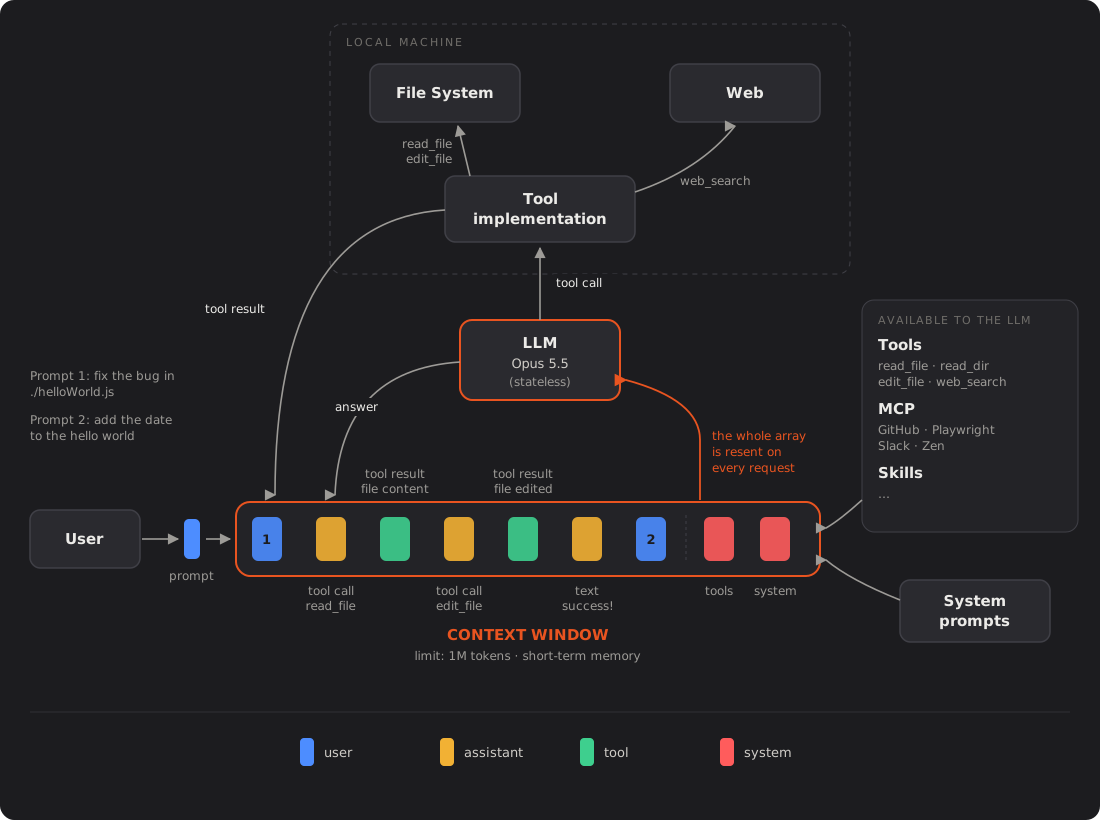
The image above shows the full architecture. The horizontal bar in the middle is the context window, with Claude Opus 5.5’s 1M token limit. Inside it, each kind of message takes up space: system, user, assistant and tool.
On the right are the tools running on the local machine (read_file, edit_file, web_search) and the available MCPs (GitHub, Playwright, Slack). On the left, the user’s prompts coming in. In the middle, the LLM, which is stateless (it has no state of its own), reading the full array and generating the next message.
Everything the LLM “knows” at any given moment is what’s inside that bar. When the limit is reached, the oldest messages start getting dropped. The behavior that looks like “forgetting” in long sessions is exactly that: the context window running out.
Managing the context window in Claude Code
Day to day with Claude Code, the array grows fast: files read, commands run, tool results. Three commands help you manage it directly:
/context shows the current state of the context window: how many tokens are in use and what the limit is. It’s the equivalent of looking at the array and seeing how much room is left before the oldest messages start being dropped.
/compact compresses the history by summarizing the oldest messages. The array isn’t thrown away, it’s condensed: the LLM gets a summary of what happened before instead of every message in full. Useful when you’re in the middle of a long task and don’t want to lose the thread.
/clear wipes the array completely. The next message starts from scratch, with just the system prompt. Useful when you’ve finished a task and are about to start an unrelated one: carrying irrelevant context only adds noise and raises the risk of hallucination.
Choosing between the last two depends on the moment: /compact when you want to pick up where you left off with less weight, /clear when you want a clean start.
For more on how Claude Code manages context, Anthropic’s official course has a lesson dedicated to it: Claude Code 101.
Conclusion
The context window is an array of messages that grows on every turn and is sent in full to the server on every request. The LLM has no state: it reads that array from scratch every time and generates the next message.
Three things define the quality of an AI development tool:
- The system prompt, which tells the LLM how to behave
- The tools, which let it read files, run code and interact with the environment
- The context you provide, which is the only material it has to work with
The quality of the result is directly tied to the quality of the context. An LLM with a good system prompt, well-defined tools and precise context solves problems that the same LLM with vague context can’t.
Coming next: rules, skills and MCPs, and how to organize projects to work well with these tools. Part 2 is already out: Rules vs Skills: how to give your AI agent memory and abilities.
Post based on one of the first lessons of Rodrigo Branas’ AI course for developers: https://www.branas.io/formacoes/inteligencia-artificial